
WordPress User Login Trigger
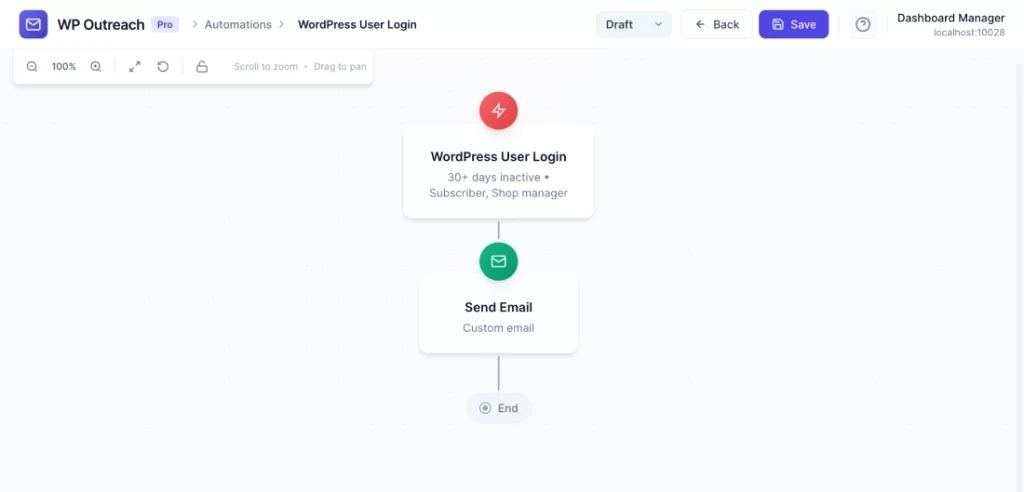
The WordPress User Login trigger fires when a user logs into your WordPress site, with an optional inactivity filter.
When It Fires
- User logs in through WordPress login form
- User logs in via social login plugin
- User logs in through WooCommerce checkout
Configuration Options
| Option | Description |
|---|---|
| Minimum Days Since Last Login | Only trigger if user hasn’t logged in for this many days. Options: 7, 14, 30, 60, 90 days. Leave empty to trigger on every login. |
| User Roles | Multi-select to filter by specific user roles. |
Important: The inactivity filter is key for re-engagement campaigns. Without it, the automation would fire on every single login, which is usually not what you want.
Available Data
| Variable | Description |
|---|---|
{{email}} | User’s email address |
{{first_name}} | First name |
{{last_name}} | Last name |
{{user_role}} | Primary user role |
{{days_since_last_login}} | Number of days since previous login |
Common Use Cases
Welcome Back Campaign
- WP User Login: Min 30 days since last login
- Send Email: “Welcome back! Here’s what’s new”
- Add Tag: “re-engaged”
Re-activation Tracking
- WP User Login: Min 90 days since last login
- Remove Tag: “inactive”
- Add Tag: “reactivated”
- Webhook Call: Update CRM
VIP Re-engagement
- WP User Login: Min 60 days, Role = “VIP”
- Send Email: “We’ve missed you! Exclusive offer inside”
How Login Tracking Works
WP Outreach tracks the last login time for each user in the wp_outreach_last_login user meta field. When a user logs in:
- System checks time since last login
- If it meets the minimum days threshold, trigger fires
- Last login time is updated for next comparison
Pro Tips
- Always use the inactivity filter unless you have a specific reason to trigger on every login
- Combine with role filtering for targeted re-engagement
- Use the
{{days_since_last_login}}variable to personalize your messages
Last updated: January 14, 2026