
Tag Added Trigger
The Tag Added to Subscriber trigger fires when a tag is applied to a subscriber.
When It Fires
- An admin manually adds a tag to a subscriber
- Another automation adds a tag via the “Add Tag” action
- An API call adds a tag
- A form submission includes tag assignment
Configuration Options
| Option | Description |
|---|---|
| Tag | Select a specific tag, or leave as “Any tag” to trigger for all tags |
Available Data
| Variable | Description |
|---|---|
{{email}} | Subscriber’s email address |
{{first_name}} | First name |
{{last_name}} | Last name |
{{tag_id}} | The ID of the tag that was added |
{{tag_name}} | The name of the tag that was added |
Common Use Cases
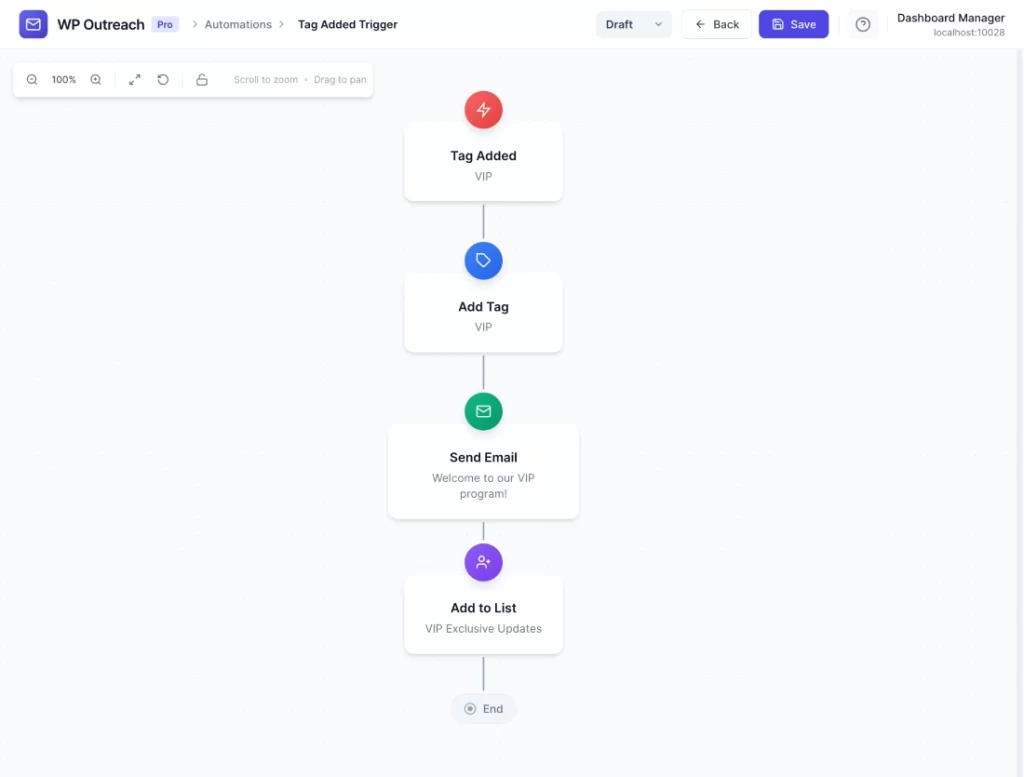
VIP Customer Treatment
- Tag Added: “VIP”
- Send Email: “Welcome to our VIP program!”
- Add to List: “VIP Exclusive Updates”
Lead Scoring Follow-up
- Tag Added: “hot-lead”
- Webhook Call: Notify sales team
- Send Email: “Let’s schedule a call”
Re-engagement Campaign
- Tag Added: “inactive”
- Wait: 1 day
- Send Email: “We miss you!”
- Wait: 7 days
- Send Email: “Last chance: Special offer inside”
Pro Tips
- Tags are powerful for segmentation – use them to categorize subscriber interests
- Combine with “Remove Tag” action to prevent duplicate runs
- Use “Any tag” option sparingly – it fires for every tag which can be noisy
Last updated: January 14, 2026