
Subscriber Created Trigger
The Subscriber Created trigger fires when a new subscriber is added to your WP Outreach system, regardless of the source.
When It Fires
This trigger activates whenever a new subscriber is created through any of these methods:
- Public subscription form – Someone submits the subscription form on your site
- Admin manual add – You add a subscriber through WP Outreach → Subscribers
- CSV import – Subscribers imported via the bulk import feature
- API creation – A third-party integration creates a subscriber via REST API
- WordPress user registration – A new WordPress user signs up (if user sync is enabled)
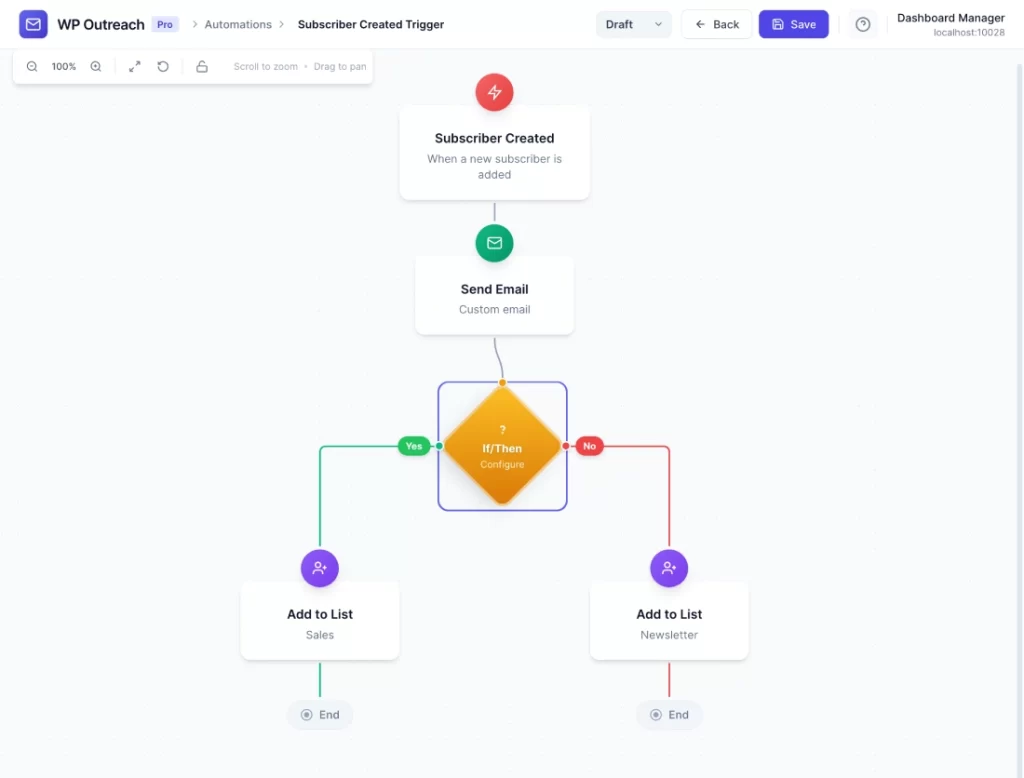
Configuration Options
This trigger has no configuration options. It fires for all new subscribers without any filtering.
Available Data (Context)
When this trigger fires, the following data is available for use in your automation steps:
| Variable | Description |
|---|---|
{{email}} | Subscriber’s email address |
{{first_name}} | First name (may be empty) |
{{last_name}} | Last name (may be empty) |
{{source}} | How they subscribed: form, admin, import, api, wp_user |
Common Use Cases
Welcome Email Sequence
Send a series of welcome emails to introduce new subscribers to your brand:
- Subscriber Created (trigger)
- Send Email: “Welcome to [Your Site]!”
- Wait: 2 days
- Send Email: “Here’s what you can expect…”
- Wait: 3 days
- Send Email: “Check out our most popular content”
Tag New Subscribers
Automatically tag new subscribers for segmentation:
- Subscriber Created (trigger)
- Add Tag: “new-subscriber”
- Wait: 30 days
- Remove Tag: “new-subscriber”
- Add Tag: “established”
Notify Admin
Get notified whenever someone joins your list:
- Subscriber Created (trigger)
- Webhook Call: Send to Slack/email notification service
Pro Tips
- If you want to trigger for specific lists only, use the “Subscriber Joins List” trigger instead
- Consider adding a wait step at the start to avoid sending emails before the subscriber confirms (if using double opt-in)
- Use
{{first_name|Friend}}to provide a fallback when first name is empty
Last updated: January 14, 2026