
SMTP Configuration
Configure SMTP for reliable email delivery with your preferred email service provider.
SMTP (Simple Mail Transfer Protocol) provides more reliable email delivery than WordPress default mail. This guide covers SMTP configuration with popular email services.
Why Use SMTP?
| Feature | WordPress Mail | SMTP |
|---|---|---|
| Deliverability | Low – often marked as spam | High – authenticated sending |
| Tracking | None | Delivery confirmations |
| Reliability | Depends on host | Dedicated email infrastructure |
| Speed | Variable | Consistent |
Quick Setup
- Go to WP Outreach → Settings → SMTP
- Enter your SMTP server details
- Test the connection
- Enable SMTP in the Mailer settings
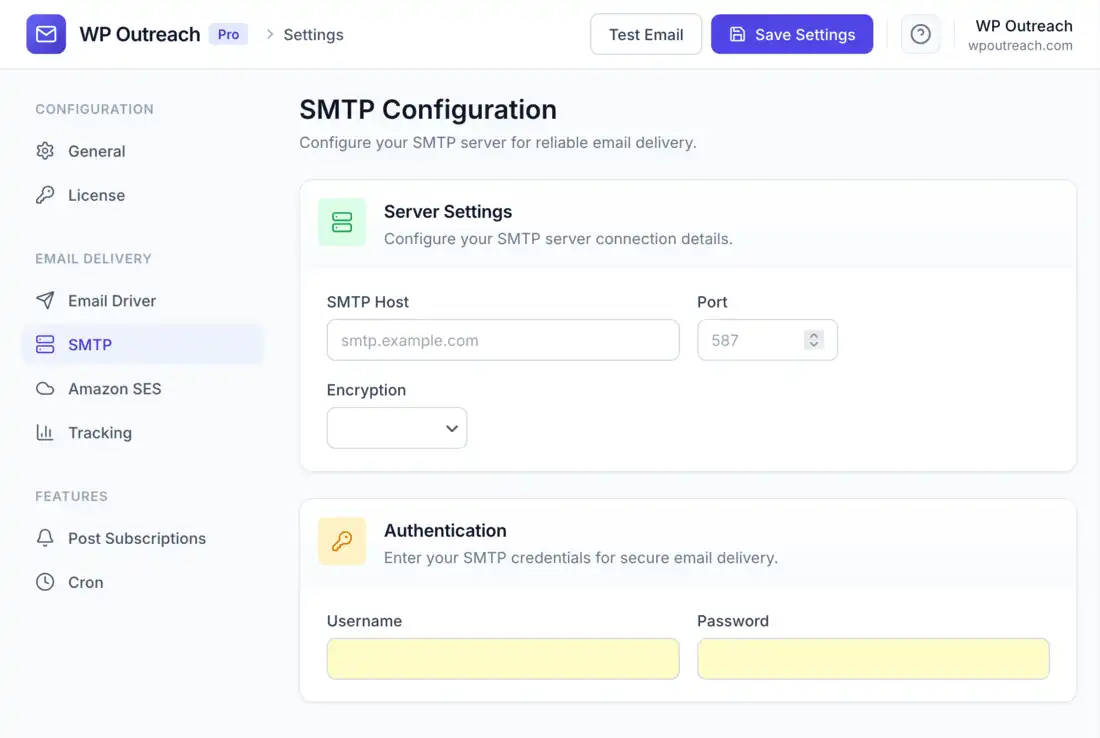
SMTP Settings
| Setting | Description | Example |
|---|---|---|
| SMTP Host | Server address | smtp.gmail.com |
| SMTP Port | Server port | 587 (TLS) or 465 (SSL) |
| Encryption | Security protocol | TLS (recommended) |
| Username | Authentication username | your@email.com |
| Password | Authentication password | App password or API key |
Encryption Options
| Type | Port | Description |
|---|---|---|
| TLS | 587 | Recommended – starts unencrypted, upgrades |
| SSL | 465 | Legacy – encrypted from start |
| None | 25 | Not recommended – no encryption |
Popular SMTP Providers
Gmail / Google Workspace
| Setting | Value |
|---|---|
| Host | smtp.gmail.com |
| Port | 587 |
| Encryption | TLS |
| Username | Your full Gmail address |
| Password | App Password (not your regular password) |
Important: You must create an “App Password” in your Google Account security settings. Regular passwords do not work with SMTP.
- Go to Google Account Security
- Enable 2-Factor Authentication if not already
- Click App passwords
- Select “Mail” and your device
- Click Generate
- Use the 16-character password in WP Outreach
SendGrid
| Setting | Value |
|---|---|
| Host | smtp.sendgrid.net |
| Port | 587 |
| Encryption | TLS |
| Username | apikey |
| Password | Your SendGrid API key |
Mailgun
| Setting | Value |
|---|---|
| Host | smtp.mailgun.org |
| Port | 587 |
| Encryption | TLS |
| Username | Your Mailgun SMTP username |
| Password | Your Mailgun SMTP password |
Postmark
| Setting | Value |
|---|---|
| Host | smtp.postmarkapp.com |
| Port | 587 |
| Encryption | TLS |
| Username | Your Postmark API token |
| Password | Your Postmark API token |
Microsoft 365 / Outlook
| Setting | Value |
|---|---|
| Host | smtp.office365.com |
| Port | 587 |
| Encryption | TLS |
| Username | Your full email address |
| Password | Your email password |
Zoho Mail
| Setting | Value |
|---|---|
| Host | smtp.zoho.com |
| Port | 587 |
| Encryption | TLS |
| Username | Your Zoho email address |
| Password | Your Zoho password or app password |
Testing Your Configuration
After entering your settings:
- Click Save Settings
- Enter a test email address
- Click Send Test Email
- Check your inbox for the test message
- If it does not arrive, check spam folder
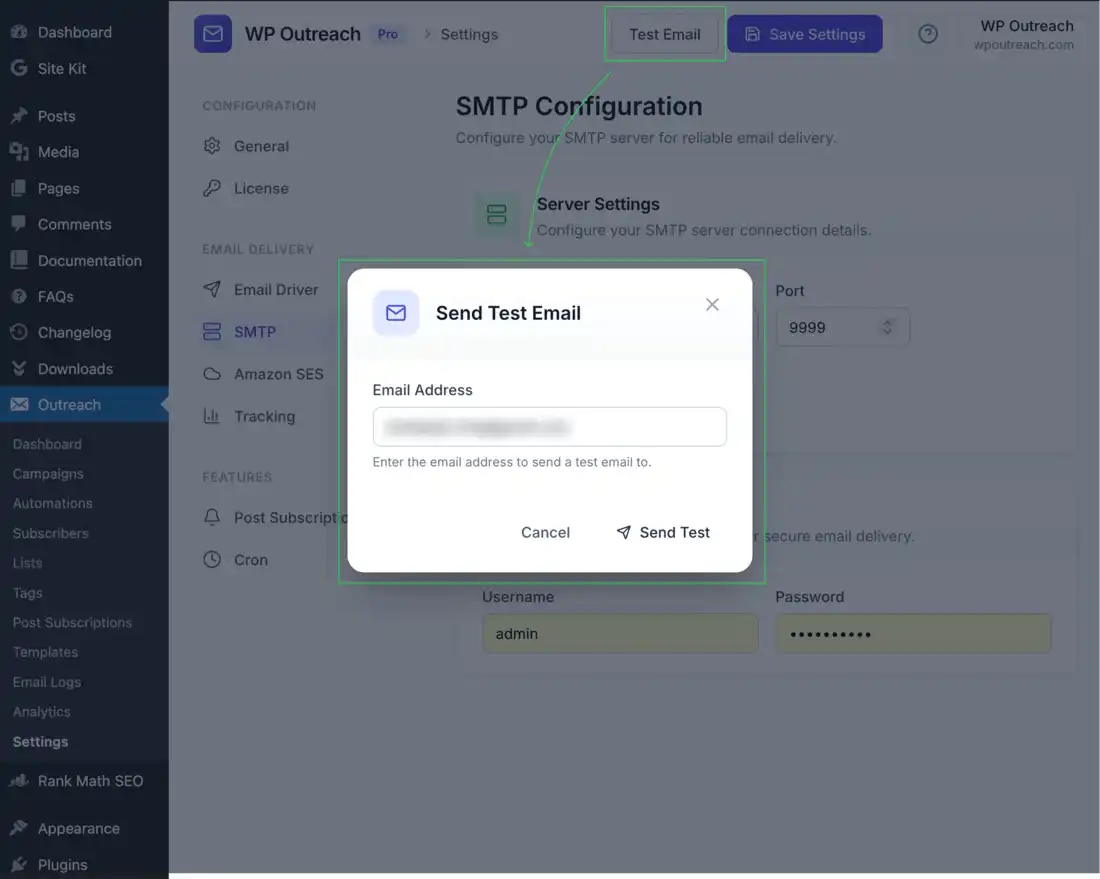
Enable SMTP as Default Mailer
Once testing is successful:
- Go to WP Outreach → Settings → Mailer
- Select SMTP
- Click Save Settings
All WP Outreach emails will now use SMTP.
Handle All WordPress Emails
Optionally route all WordPress emails through your SMTP:
- Go to WP Outreach → Settings → Mailer
- Enable Handle all WordPress emails
- Click Save Settings
This routes password resets, comment notifications, and other WordPress emails through your SMTP server.
Troubleshooting
Connection Refused
- Verify host and port are correct
- Check if your host blocks outgoing SMTP (port 25, 465, 587)
- Try different ports (587 or 465)
- Contact your hosting provider about SMTP restrictions
Authentication Failed
- Double-check username and password
- For Gmail, ensure you are using an App Password
- Verify your email provider account is active
- Check if 2FA requires special app passwords
SSL/TLS Errors
- Try switching between TLS and SSL
- Ensure your server SSL certificates are valid
- Check PHP OpenSSL extension is enabled
Emails Going to Spam
- Set up SPF record for your domain
- Configure DKIM signing (if available)
- Use a “from” address that matches your domain
- Avoid spam trigger words in subject/content
Recommended Providers by Use Case
| Use Case | Recommended | Why |
|---|---|---|
| Small lists (<1,000) | Gmail / Zoho | Free, easy setup |
| Medium lists | SendGrid / Mailgun | Good free tiers, reliable |
| High volume | Amazon SES | Best pricing at scale |
| Transactional focus | Postmark | Optimized for delivery speed |
Security Best Practices
- Always use TLS/SSL encryption
- Use app-specific passwords when available
- Never share SMTP credentials
- Consider storing credentials in wp-config.php
- Regularly rotate passwords/API keys
- Monitor for unusual sending activity
Last updated: January 4, 2026