
Incoming Webhook Trigger
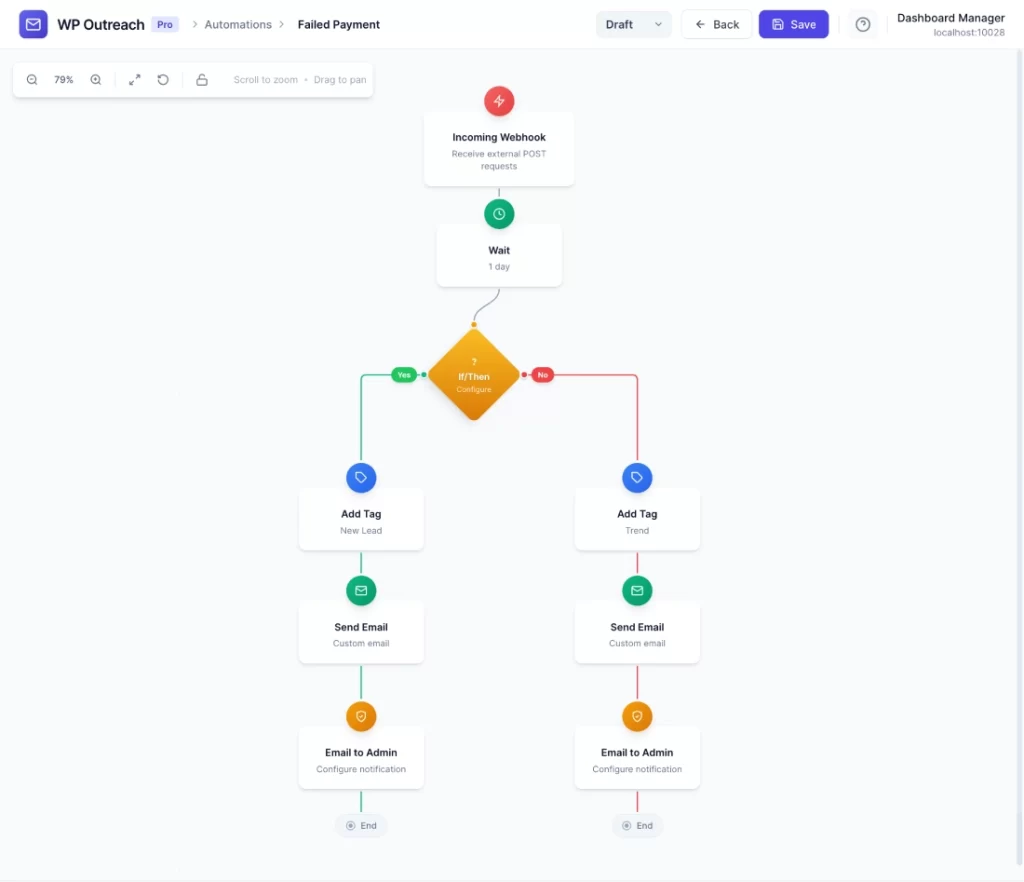
The Incoming Webhook trigger allows external systems like Zapier, Make (Integromat), Stripe, security plugins, or custom applications to start automations by sending an HTTP POST request to a unique webhook URL.
When It Fires
This trigger activates when:
- An external system sends an HTTP POST request to your automation webhook URL
- The request includes a valid HMAC-SHA256 signature in the header
Configuration
When you select “Incoming Webhook” as your trigger, WP Outreach automatically generates:
- Webhook URL – A unique endpoint for this automation
- Secret Key – Used to sign requests for security validation
Sending Webhook Requests
Your external system must send a POST request with these requirements:
Required Headers
| Header | Value |
|---|---|
Content-Type | application/json |
X-Outreach-Signature | HMAC-SHA256 signature of the payload |
Note: The signature header can also be named X-WP-Outreach-Signature, X-Signature, or X-Hub-Signature-256 for compatibility with various webhook providers.
Payload Structure
The JSON payload can include any data your external system sends. The email field is optional:
{
    "email": "subscriber@example.com",
    "first_name": "John",
    "last_name": "Doe",
    "event_type": "purchase",
    "amount": 99.99
}
With email: WP Outreach will look up or create a subscriber and associate the automation run with them.
Without email: The automation still runs, but no subscriber is associated. This is useful for system notifications, security alerts, or admin-only notifications where you use the “Email to Admin” action instead of subscriber-based emails.
Computing the Signature
The signature is computed using HMAC-SHA256:
// PHP Example
$signature = hash_hmac("sha256", $payload_json, $secret_key);

// JavaScript Example
const crypto = require("crypto");
const signature = crypto
    .createHmac("sha256", secretKey)
    .update(payloadJson)
    .digest("hex");
Available Merge Tags
When this trigger fires, the following merge tags are available in your email content:
| Merge Tag | Description |
|---|---|
{{email}} | Subscriber email (if provided) |
{{first_name}} | First name from payload |
{{last_name}} | Last name from payload |
{{webhook_dataset}} | All webhook data as a formatted HTML table |
{{webhook_*}} | Any field from the webhook payload (e.g., {{webhook_event}}, {{webhook_status}}) |
The {{webhook_dataset}} merge tag is especially useful when you want to include all the data from the webhook in your notification email, formatted as a readable table.
Email to Admin Action
For webhooks without subscriber emails (security alerts, system notifications, etc.), use the Email to Admin action instead of “Send Email”. This action sends notifications directly to the site administrator without requiring a subscriber.
Configuration options:
- Send To: Admin email (defaults to site admin)
- Subject: Email subject line (supports merge tags)
- Content: Email body (use
{{webhook_dataset}}to include all webhook data)
Common Use Cases
With Subscriber Email
- Stripe Integration – Trigger automations when customers make purchases, subscriptions renew, or payments fail
- Zapier/Make Workflows – Connect WP Outreach to 5,000+ apps via automation platforms
- Form Submissions – Trigger automations from external forms (Typeform, Gravity Forms, etc.)
- E-commerce Events – Start sequences based on WooCommerce, EDD, or other platform events
- CRM Integration – Sync actions from external CRM systems
Without Subscriber Email (Admin Notifications)
- Security Alerts – Receive notifications from Wordfence, Sucuri, or other security plugins when threats are detected
- System Monitoring – Get alerts when server resources are low, backups fail, or services go down
- Uptime Monitoring – Integrate with services like Pingdom or UptimeRobot for downtime notifications
- Error Tracking – Receive alerts from error tracking services like Sentry or Bugsnag
- Deployment Notifications – Get notified when new code is deployed via CI/CD pipelines
Condition Fields
Use these condition fields to branch your automation based on webhook data:
| Field | Description |
|---|---|
event_type | Type of event (e.g., “purchase”, “signup”) |
action | Action performed |
status | Status value from payload |
amount | Numeric amount (purchases, etc.) |
currency | Currency code (USD, EUR, etc.) |
product_id | Product identifier |
plan | Subscription plan name |
source | Source of the webhook |
webhook_payload.* | Custom fields (editable) |
Security Best Practices
- Always validate the signature before processing webhook data
- Keep your secret key confidential – do not expose it in client-side code
- Use HTTPS for your WordPress site to encrypt webhook traffic
- Regenerate your secret key if you suspect it has been compromised
Pro Tips
- If the email exists in your subscriber list, that subscriber is used; otherwise a new subscriber is created automatically
- Include first_name and last_name in your payload to populate subscriber details
- Use condition steps to create different paths based on webhook payload values
- Test your webhook integration with tools like Postman or curl before going live
- For webhooks without emails, use the “Email to Admin” action to send notifications to yourself
- Use
{{webhook_dataset}}in your email content to include a formatted table of all webhook data
Last updated: January 14, 2026